Research Slop: Driving Google Workspace from the Terminal
I run the fire safety committee for a Hollywood Hills neighborhood association. 57 members, monthly meetings, Google Docs and Sheets galore. I wanted to know which AI tools could handle the tedious Google Drive logistics so I could stop doing them myself.
To be clear about what I was looking for: not Gemini in Google Docs. Google already ships AI features inside Workspace apps, and they’re fine for what they are. But I want an agent workflow. I tell Claude what I need, whether that’s by typing, by voice, by a slash command, or by a cron trigger, and it handles the Google Workspace parts. Create a Doc, update a Sheet, send a reminder, check the calendar. I stay in my flow. I don’t open Gmail to send a reminder or switch to Docs to format an agenda. The agent does it.
So I spent a few days testing the most likely tools for that job. Claude Code, Claude Cowork, Gemini CLI, GWS CLI, ChatGPT. I lazily let Claude drive most of the process: planning what to test, executing the tests, writing up results, organizing the findings.
I learned a few things about Google Workspace, and learned how NOT to trust Claude Code with unstructured research.
The findings (condensed)
Here’s what I learned about reading, writing, and managing Google Workspace content with AI tools, as of April 2026.
Claude Cowork: great for reading, can’t write
The desktop app with one-click Google connectors. Setup takes two minutes. No terminal. I want to understand Claude Cowwork and its limits, so I can prescribe it to terminal-allergic clients, friends, and familly.
What works: Full-text Drive search across personal and Workspace accounts simultaneously. Auto-converts Google Docs to clean Markdown. Gmail search with full query syntax. Calendar is the standout: full read/write, event creation, RSVP status for all 57 committee members.
What doesn’t: Drive connector is read-only. Cannot create, edit, upload, move, or delete anything. Sheets search returns empty (we couldn’t even find spreadsheets, let alone read them). Large docs over 500KB fail with a size error. Email body reading failed (headers and snippets only). Browser automation through Claude in Chrome was broken in both available integrations.
Bottom line: If you just need to search Drive, read docs, draft emails, and manage your calendar, Cowork is a fast path. But it can’t write to anything except Calendar.
Claude Code + GWS CLI: full coverage, painful setup
Terminal-based Claude Code paired with Google’s official Workspace CLI. This is the tool that made me rethink how AI agents should connect to APIs.
The creator, Justin Poehnelt, wrote a post called “You Need to Rewrite Your CLI for AI Agents” that explains the design. The core idea: gws doesn’t ship a static list of commands. It reads Google’s Discovery Documents at runtime and builds its entire command surface dynamically. Run gws schema drive.files.list and you get the current method signature, parameters, and required OAuth scopes. The CLI is its own documentation, always in sync with the live API.
This was the moment the “MCP is not the way” argument really clicked for me. The context-efficiency advantage of skill over MCP connectors was obvious, but the “how do you navigate CLI capabilities” less so. gws leads by example, exposing a well-structured CLI with --json output and self-describing schemas. Claude Code can call it, read the output, and introspect the available operations without an MCP adapter. The CLI is the interface.
What works: Full Docs CRUD (create, read, edit with formatting via batchUpdate). Full Sheets read/write at the cell level. Drive file management (upload, move, share, comment). Gmail send (HTML email). Calendar CRUD. 16 out of 17 tests passed. The only failure was gws docs pull/push, which turned out to never have shipped despite being in the documentation.
What doesn’t: Setup. Our auth flow took 44 minutes because we hit every possible wall.
Why you need a GCP project to use your own Google account
This is the part that baffled me. To use gws with your own Google Docs in your own Google Drive, you first have to create a Google Cloud Platform project, enable APIs on it, and configure an OAuth consent screen. You are essentially registering yourself as a software developer building an application, just to read your own files.
The reason is architectural. Google doesn’t let any program talk directly to Workspace APIs using just your login. Every application that touches Gmail, Drive, Docs, or Calendar needs its own identity: an OAuth client ID tied to a GCP project. This is how Google tracks API usage, enforces rate limits, and controls which scopes (permissions like “read your email” or “edit your documents”) an application can request. The GCP project is the container for all of that. It holds the OAuth credentials, the list of enabled APIs, the consent screen configuration, and the quota counters.
This makes sense for a production app with thousands of users. It makes less sense when you are one person running a CLI on your laptop to edit your own meeting notes. But Google doesn’t distinguish between those cases. The official documentation walks you through creating credentials as though you are shipping software, because from Google’s perspective, you are.
The gws auth setup wizard tries to automate this: it creates the GCP project, enables the APIs, and generates the OAuth client for you. But the wizard can’t save you from the consent screen configuration, which is where the real pain lives.
The auth gauntlet, in order:
- Token expired. Re-authed
gcloud(different CLI fromgws, confusing). - Scope picker showed 48 OAuth scopes. Pressed Enter on “Recommended.”
- Browser opened for consent. Chose @gmail.com. Blocked: “org_internal.” Our GCP project was created under a Workspace account, which defaults OAuth to internal-only.
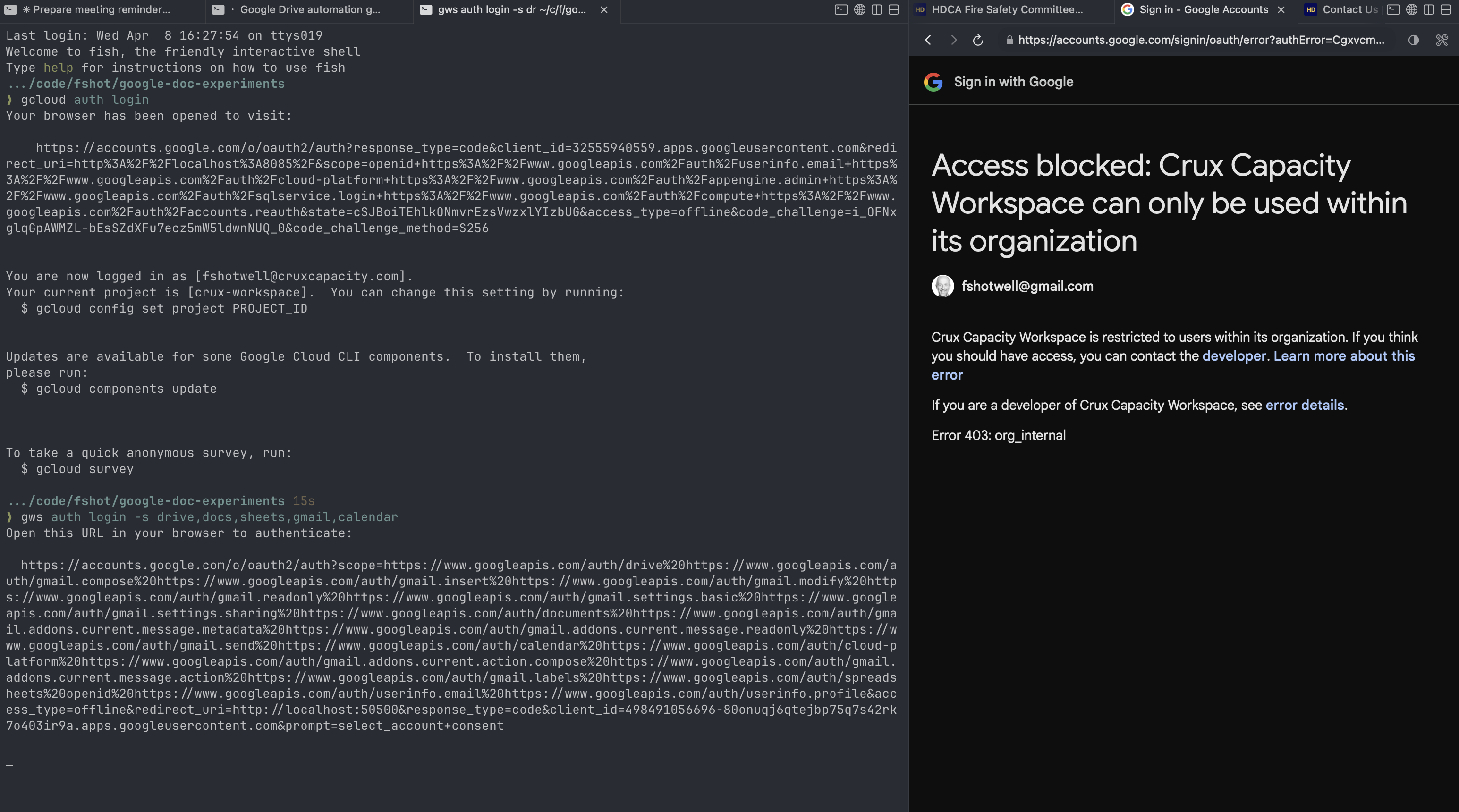
- Changed OAuth consent screen from Internal to External + Testing in GCP Console.
- Re-authed. Blocked again: no test user. Had to add our own email as a test user.

- Re-authed. Only 5 scopes granted because I didn’t click “Select all” on the consent screen.
- Re-authed with Select All. Blocked: IAM permission error (cross-account).
- Gave up on the Workspace-owned project. Created a new GCP project under @gmail.com.
- Enabled APIs, created OAuth creds, added test user. Blocked again: forgot the test user in the new project.
- Added test user. Auth listener had timed out. Re-ran. Success.
- Then six consecutive macOS keychain popups until I clicked “Always Allow.”
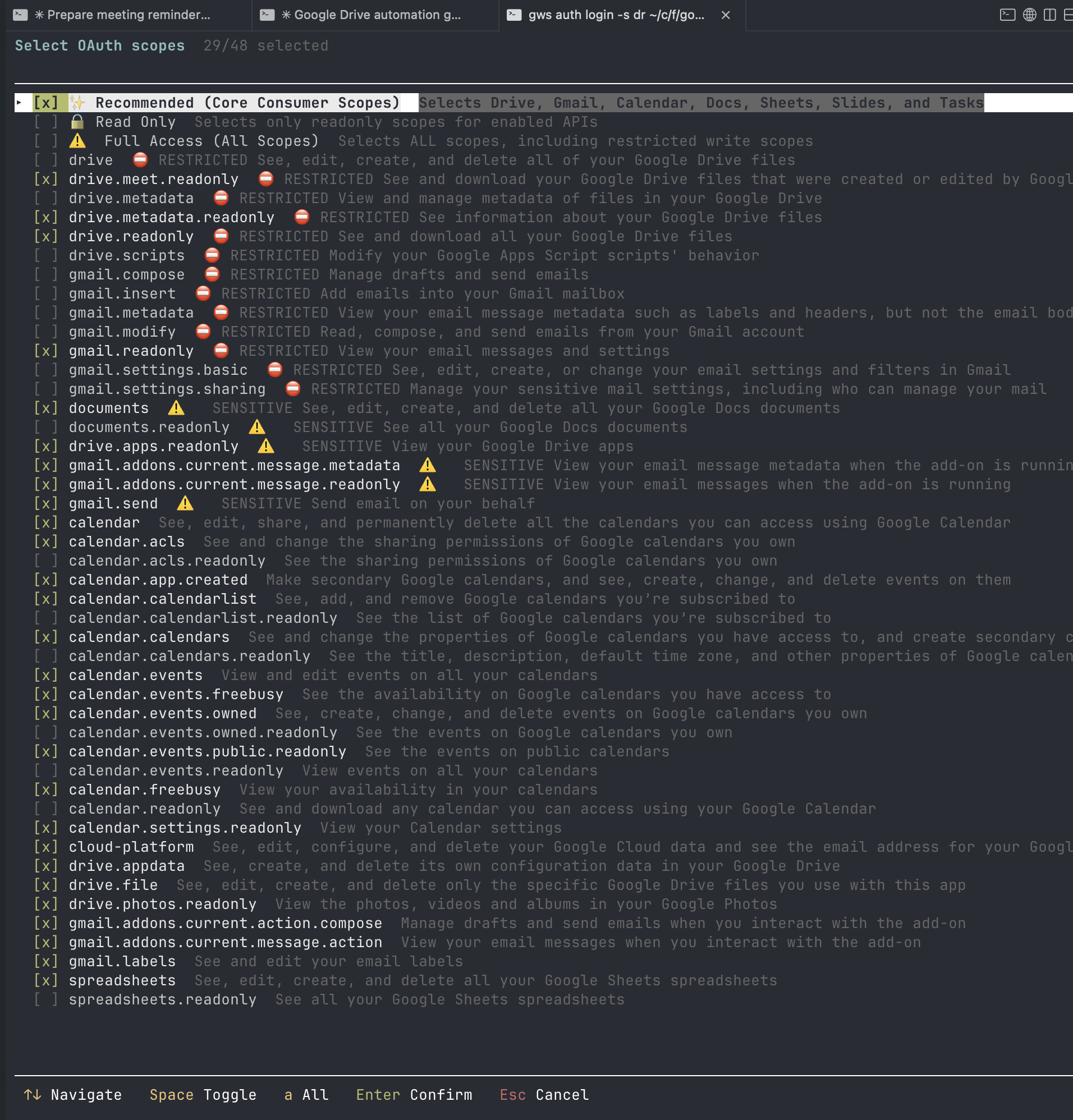
If you do it right the first time (create the project under your @gmail.com, set External + Testing, add yourself as test user before first auth, click Select All on consent), it takes 10 to 15 minutes. We hit every possible rough edge and it took us 45 minutes.
If you’re doing this yourself
Create the GCP project while signed into your @gmail.com account, not a Workspace account. Workspace accounts default the OAuth consent screen to “Internal,” which means only users inside that organization can authenticate. Your personal Gmail gets blocked with an org_internal error. Switching to “External” mode triggers a second requirement: you must manually add your own email address as a “test user” before Google will let you through. Skip either step and you get a wall.
The consent screen configuration docs explain the Internal vs External distinction, but they frame it as a choice you’re making for your app’s audience. When you’re the only user of your own CLI, the framing feels absurd. You’re not choosing an audience. You’re trying to read your own calendar.
Once past auth, gws is the most capable option. But the 10 to 15 minutes of GCP ceremony (45 if you hit every wall like I did) is the price of admission.
Gemini CLI: simpler setup, rough experience
This is where Claude’s initial v1 write-up was least honest, so let me be specific about what actually happened.
Setup was genuinely simpler. One npm install, one gemini extensions install command, one Google sign-in. No GCP project. No OAuth credential creation. No scope picker. Five minutes to first use.
The reason it’s simpler is instructive: the Gemini CLI workspace extension ships with a pre-configured OAuth client ID built into the extension itself. The extension maintainers have already done the GCP project creation, API enablement, and consent screen configuration that gws makes you do yourself. You authenticate as a user of their application rather than registering your own. It’s the same underlying OAuth flow, but someone else did the infrastructure work.

Then it got rough.
The very first Workspace tool call returned 429 Too Many Requests. Not after heavy use. On the first call. We had to switch from Gemini 2.5 Pro to Gemini 3 to proceed.
The MCP server took about 4 minutes to start on first use (compilation + OAuth). After that, every tool call came with long, unexplained thinking pauses. One identity check (people.getMe) returned results, then Claude sat thinking for 2 minutes and 38 seconds before responding. This happened repeatedly. The tool would complete its API call, return data, and then the model would just… pause. No indication of what it was doing. Is this Gemini’s “bad at tool use” problem I keep hearing about? I will be honest, I keep bouncing off of Gemini CLI, and this latest effort was yet another bounce. I have not yet found a reason to veer from Claude Code and put in the hours to really assess Gemini CLI’s strengths.
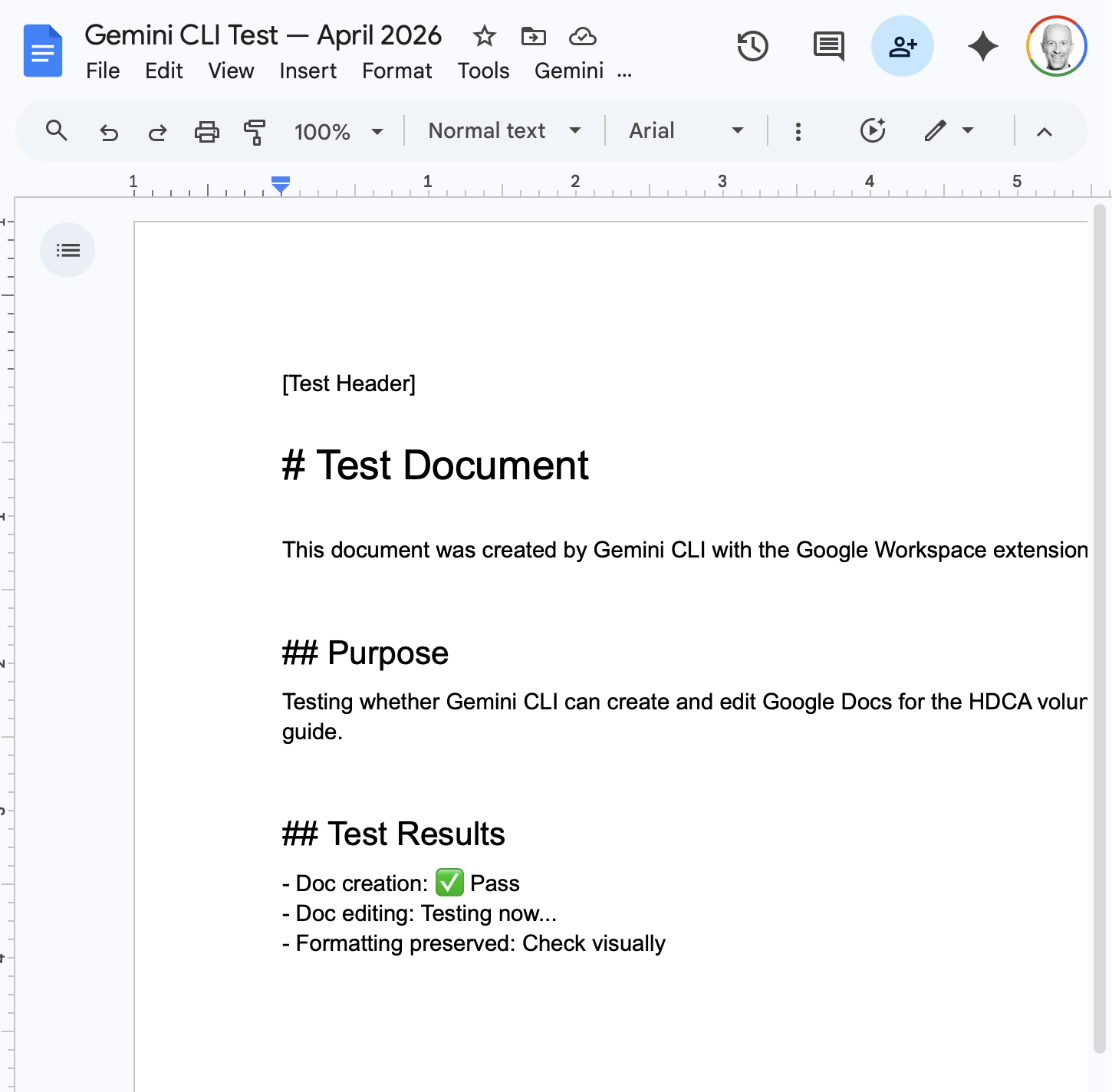
Doc creation worked but Markdown wasn’t converted to Docs formatting. Raw # and ## showed up as literal text in the Google Doc.
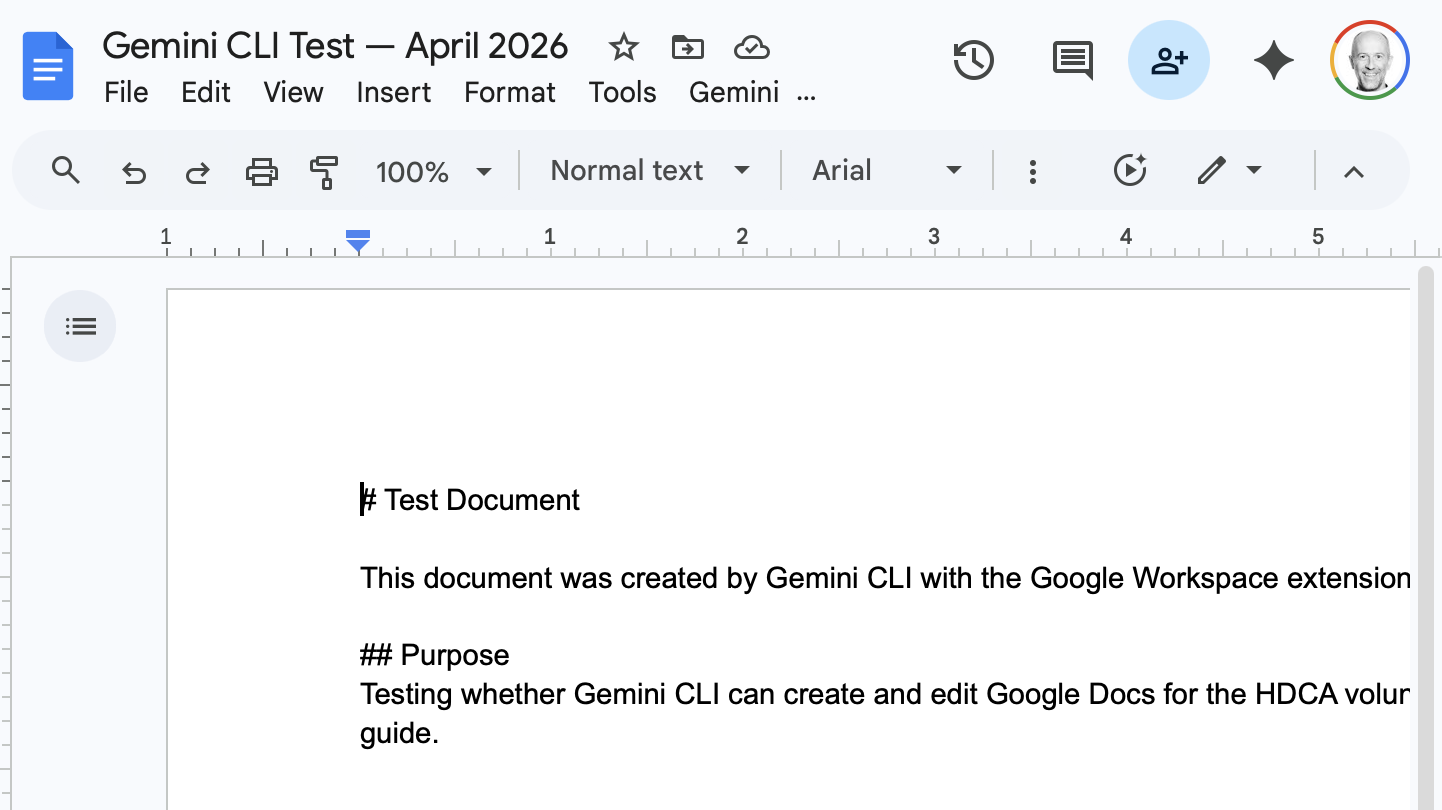
Doc editing failed twice before succeeding on the third attempt. First failure: a writeText position “end” bug. Second: an off-by-one index error. Third try worked, and formatting (bold headers) was then applied successfully.
Sheets are read-only through the extension. When I asked it to write to a Sheet, it tried to fall back to raw curl commands, then admitted no write tools exist.
The most concerning moment: I asked it to send an email and it just sent it. No confirmation prompt. The extension’s own documentation says it should ask before sending. Calendar event creation, by contrast, did ask for confirmation. Inconsistent safety behavior in a tool that has access to your email is not great.
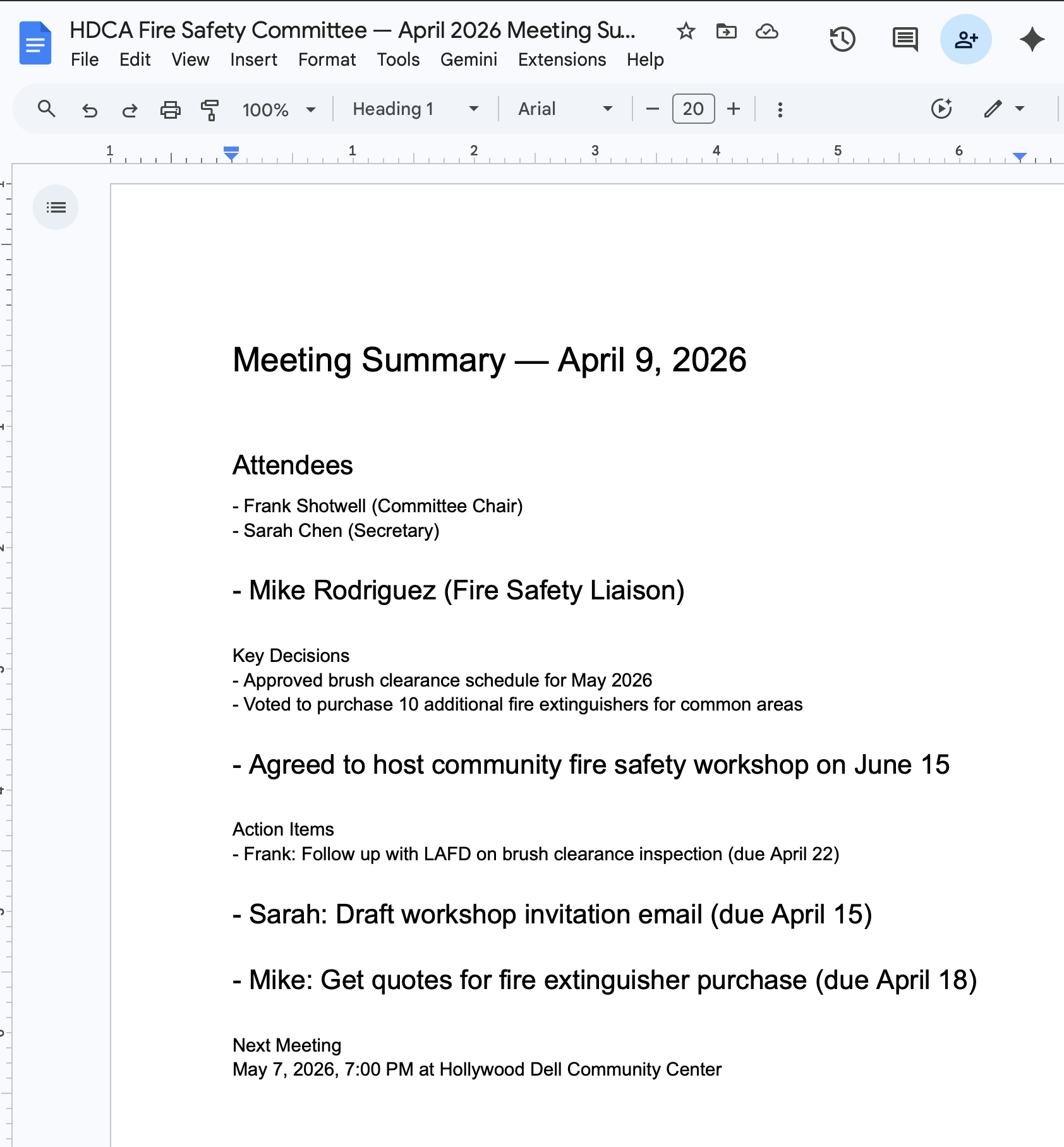
Meeting summary formatting was uneven. Some bullet points rendered correctly, others became full-width paragraphs. Heading hierarchy was inconsistent.
Bottom line: Gemini CLI has the easiest setup of any terminal tool, and it’s free(ish?). But the experience was slow, inconsistent, and occasionally unsafe. If the pauses and formatting issues get fixed, this becomes the best free option. Right now it’s frustrating to use.
ChatGPT + Google Drive: not useful
Read-only. Can’t search for files (you have to manually link them). No create, no edit, no Sheets. Requires a paid plan for the connector. We didn’t spend more time here.
The bigger realization
After a week of testing, the most important finding had nothing to do with which tool was best.
Every tool I tested is optimized for working with local documents. They read a Google Doc, convert it to Markdown, and work with it on your machine. What I’m trying to do (multiple non-technical people collaborating through a shared Drive, with AI agents mediating) is not what these tools were built for.
My neighborhood committee isn’t attached to Google Drive. They want to glance at meeting agendas and find the occasional flyer. All of that is better served by a simple website backed by Markdown files than by a shared Drive that requires special tools to automate.
I’m the one who set up Google Drive as the sharing mechanism. The right move isn’t to find better tools for Drive, but to rethink the sharing mechanism. That’s a separate project.
The meta-problem: Claude drove this research badly
Here’s the part I didn’t plan to write about, but should.
I let Claude Code organize and execute most of this testing across multiple sessions over a week. I gave it conversational direction (“test these tools,” “write a playbook,” “draft a blog post”) and let it figure out the details.
The output was 12 markdown files with no consistent structure, naming, or relationship to each other. A research plan written after testing had already started. Test results that vary wildly in format. A workflow playbook that references features that turned out not to exist (gws docs pull/push, gws mcp). And a blog post first draft that sanitized the rough edges into something that sounded thorough but wasn’t honest.
Some specific failures:
- No test protocol before testing. Claude jumped into running commands before defining what “success” looked like or what the test matrix should be.
- No consistent file structure. Each session produced documents in whatever format felt natural at the time. Some have structured tables, some are narrative. File names follow no convention.
- Analysis smoothed over pain. The first blog draft described the Gemini CLI experience as having “minor friction” with rate limiting. The actual experience was: 429 on first call, multi-minute unexplained pauses, two failed edit attempts, an email sent without consent, and read-only Sheets. That’s not minor friction. That’s a tool that isn’t ready.
- Retrofitted planning. The “research plan” was written after we’d already tested two tools, to make it look like we’d been organized all along.
- No separation of observation from interpretation. Raw test output and conclusions were mixed in the same documents, making it hard to tell what actually happened vs. what Claude decided it meant.
I really should have known better — ‘plan mode’ and spec-first development is where Claude Code does its best coding, and this is clearly what was missing from my slap-dash v1 Google Workspace experiments. Claude produced some plausible-sounding documents that pretended to be organized, but really failed to organize all of it’s ad-hoc findings into a coherent narrative. So I’m going to start over with a proper plan, rather than try to roll the v1 slop up into a snowman.
V2: doing it properly
The raw artifacts from this v1 experiment are preserved in the google-doc-experiments repo. Everything stays as-is, mess and all.
For v2, I’m building a structured framework before running any tests:
A project CLAUDE.md that defines the protocol, file conventions, and what “done” looks like. Not vibes. Specifications.
A test matrix checklist covering five tool configurations (Cowork, Claude Code + GWS CLI, Claude Code + best community MCP, Gemini CLI standalone, Gemini CLI + GWS extension), each tested against two account types (@gmail.com and Workspace). That’s 10 test runs through a standardized operation checklist.
Structured session logs. Each test run produces a raw log from a template: what was attempted, what happened, exact outputs, timing, errors. Observation only. No interpretation.
A separate synthesis step. After all sessions complete, a separate Claude session reads all the raw logs and produces the analysis. This forces the conclusions to come from the evidence rather than from whatever narrative felt natural during testing.
Component tests first, then integration. Individual operations (search, read, create, edit, share) tested in isolation, then a full “meeting lifecycle” acceptance test that mirrors real committee work: find last month’s notes, create an agenda, update the calendar invite, send a reminder, log attendance.
The comparison between v1 and v2 results will be part of the story. Same tools, same person, same Claude. Better process. How much does structure actually matter for AI-assisted research? And a parallel track to find a more AI-legible alternative to Google Workspace for this kind of community work.
To be continued!
Raw test artifacts: cruxcapacity/google-doc-experiments
Part of an ongoing experiment at cruxcapacity.com exploring how AI tools can reduce the cognitive load of community organizing.